NO AUDIO INSIDE
MIDI needs an instrument
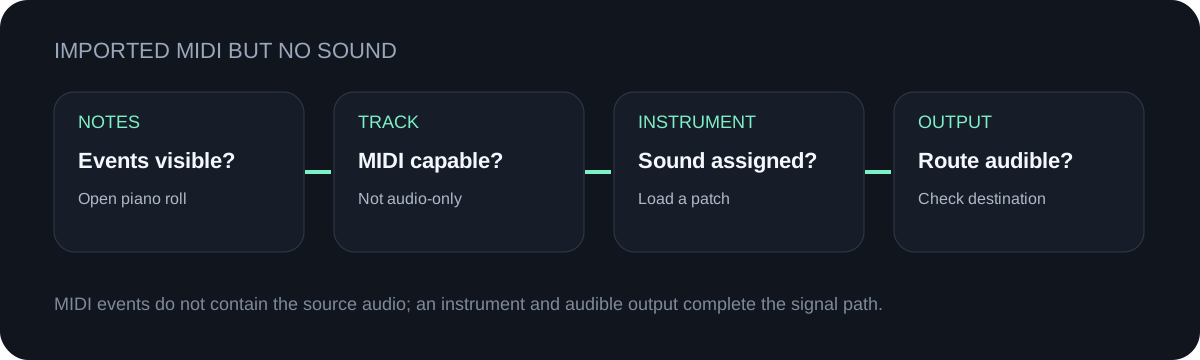
A `.mid` file stores note and timing events, not the source recording. Assign a software instrument, hardware destination, or another sound-producing MIDI target before judging playback.
AFTER CONVERSION
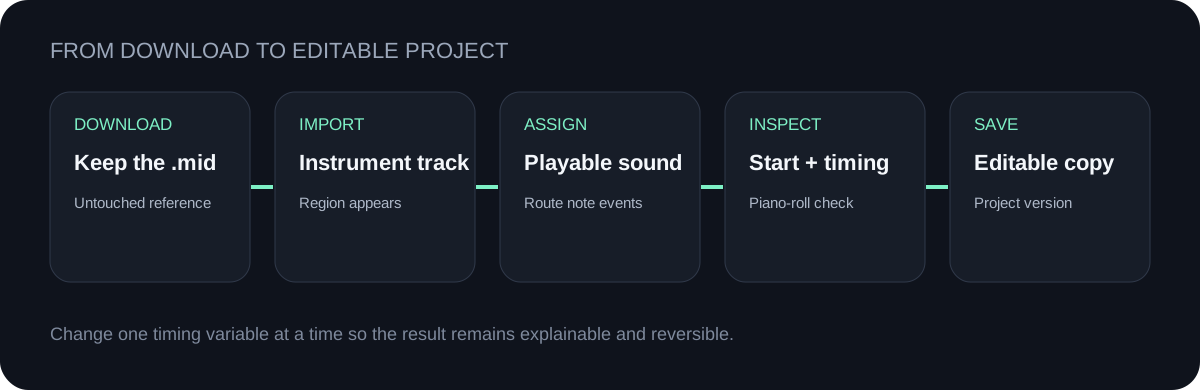
Download the `.mid` file, import or drag it onto a MIDI or instrument track, assign a software instrument, check where the first note starts, match the project tempo only if the musical timing requires it, then save an editable project copy.
CREATE THE FILE
Choose one audio file or record a melody. The conversion stays in this browser.
INPUT MP3 / WAV / M4A / FLAC / OGG → OUTPUT .MID
or click to choose audio from your device
MP3, WAV, M4A, FLAC, or OGG · one file · up to 50 MB / 5 minutesRESULT
Your audio stays on your device. All processing happens in this browser. No file is uploaded to a server.
| Checkpoint | What to do | What you should observe | If it looks wrong |
|---|---|---|---|
| File | Import or drag the downloaded `.mid` into the project. | A MIDI region or clip containing note events appears. | Confirm that you selected the `.mid`, not the original audio file. |
| Track | Place the region on a MIDI or software-instrument track. | The track can route note events to an instrument. | Move the region from an audio-only track to an instrument-capable track. |
| Sound | Assign a software instrument or other MIDI destination. | Playback produces sound from the selected instrument. | If the notes move but no sound plays, check the instrument and output routing. |
| Timing | Check the first note position and compare playback with the intended pulse. | The phrase starts where expected and the grid is useful for editing. | Move the region start or revise tempo and quantization deliberately; do not change both at once. |
| Edit | Listen, inspect the piano roll, remove unwanted notes, then save the project. | An editable copy remains even after later changes. | Keep the downloaded `.mid` as the untouched reference. |
NO AUDIO INSIDE
A `.mid` file stores note and timing events, not the source recording. Assign a software instrument, hardware destination, or another sound-producing MIDI target before judging playback.
START POSITION
An imported region can begin away from the playhead or include silence before its first detected note. Locate the first event, then decide whether the region should move.
TEMPO
The file stores timed note events and a tempo setting from this converter. Your DAW may use the project tempo or offer an import choice. Read that prompt and change one timing variable at a time.
EDITABLE COPY
Save the DAW project under a new name and keep the downloaded `.mid` unchanged. This gives you a clean reference if later quantization or note edits need to be reversed.
QUICK ANSWERS
Import or drag the `.mid` onto a MIDI or software-instrument track, assign an instrument, check the first note and tempo, then save an editable project copy.
MIDI stores performance events rather than recorded sound. Add a playable instrument and confirm that the track output reaches your audible output path.
Logic Pro supports Standard MIDI files. Import the downloaded `.mid`, place it on a software-instrument track, and choose an instrument. Exact labels can vary by Logic Pro version and platform.
GarageBand versions and platforms differ. Where MIDI-file import is available, bring the `.mid` into a software-instrument track and assign a sound; use the help for your installed version if the control is not visible.
Return to the conversion troubleshooting guide, adjust one detector control, and export a fresh `.mid` before doing extensive DAW cleanup.