CODE-VERIFIED GRID
Each quarter note has 480 ticks
The current writer calculates grid ticks as 480 × 4 ÷ division. That produces 480, 240, 120, and 60 ticks for quarter, eighth, sixteenth, and thirty-second notes.
TIMING GRID
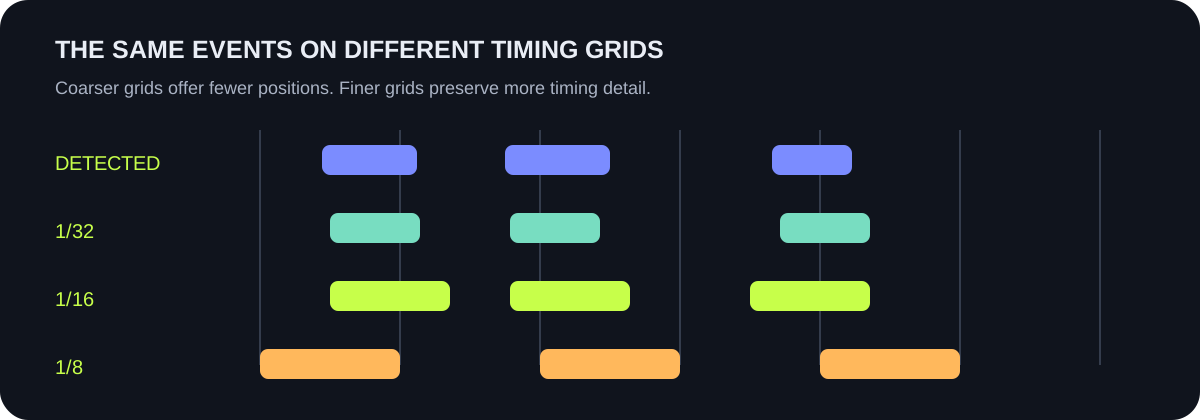
Choose the smallest grid that corrects the timing you want without flattening intentional rhythm. Start with quantize off, download a baseline, then try 1/16 or 1/8 on the same audio. In this tool, quantize changes the event timing written into the downloaded MIDI file; it does not move the detected-note preview on this page.
MAKE A TIMING TEST
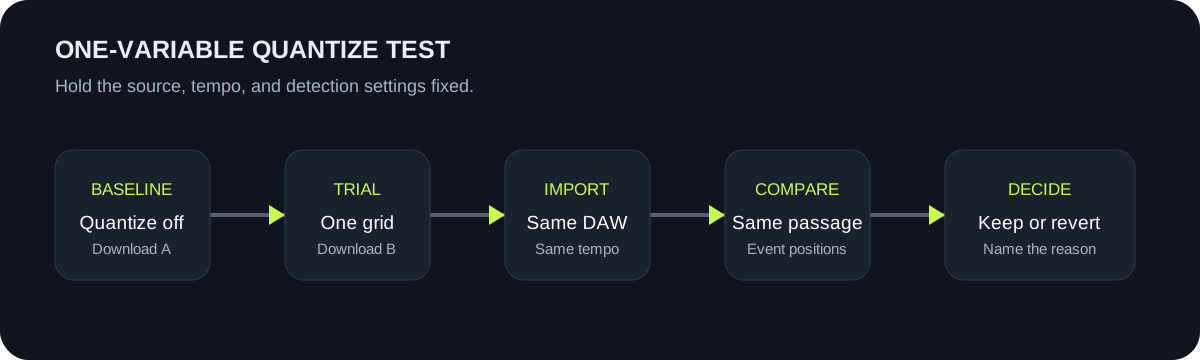
Keep the source and detection controls fixed. Change only Quantize, download each trial, and compare the same passage.
INPUT MP3 / WAV / M4A / FLAC / OGG → OUTPUT .MID
or click to choose audio from your device
MP3, WAV, M4A, FLAC, or OGG · one file · up to 50 MB / 5 minutesRESULT
Your audio stays on your device. All processing happens in this browser. No file is uploaded to a server.
| Setting | Grid in this MIDI writer | At 120 BPM | Use it to test |
|---|---|---|---|
| Off | 1 tick; no musical grid selected | Detected timing is converted to ticks, then rounded to a whole tick | Baseline timing before musical-grid snapping |
| 1/32 | 60 ticks | 62.5 ms grid step | Small corrections while retaining more timing detail |
| 1/16 | 120 ticks | 125 ms grid step | A first comparison for many short-note passages |
| 1/8 | 240 ticks | 250 ms grid step | Stronger timing correction with fewer allowed positions |
| 1/4 | 480 ticks | 500 ms grid step | Very coarse placement where beat-level timing is intended |
CODE-VERIFIED GRID
The current writer calculates grid ticks as 480 × 4 ÷ division. That produces 480, 240, 120, and 60 ticks for quarter, eighth, sixteenth, and thirty-second notes.
SNAP RULE
The writer divides a raw tick position by the selected grid, rounds it, and multiplies back by the grid size. It also keeps every written note at least one selected grid step long.
TEMPO MATTERS
Ticks are calculated from the chosen BPM. At 120 BPM, a quarter note is 500 ms; at another tempo, the musical division stays the same while its duration in milliseconds changes.
PREVIEW BOUNDARY
The piano roll on this page draws detected notes before MIDI writing. Quantize is applied inside the file writer, so import each download into the same DAW project to compare snapped event timing.
QUICK ANSWERS
Start with off as a baseline, then try the finest grid that targets the timing problem. Compare 1/16 before moving to the coarser 1/8 or 1/4 grids.
This page shows detected-note timing. The selected quantize grid is applied when the MIDI file is written, so inspect the downloaded event positions after import.
No. Quantize changes timing positions. Use pitch boundaries for out-of-range notes, minimum-note duration for short fragments, and the troubleshooting guide for symptom-specific adjustments.
Yes. A coarser grid offers fewer timing positions and can move notes farther from the detected timing. Keep a trial only when the intended rhythm still reads correctly.
Use the same file, tempo, and detection controls. Download one version with quantize off and one with a single grid setting, then compare the same passage in the same DAW project.