BASELINE
Record what the page actually shows
Write down the control values, note count, displayed MIDI range, BPM, and a short description of the same preview passage. These are observable signals, not an accuracy percentage.
CONTROLLED COMPARISON
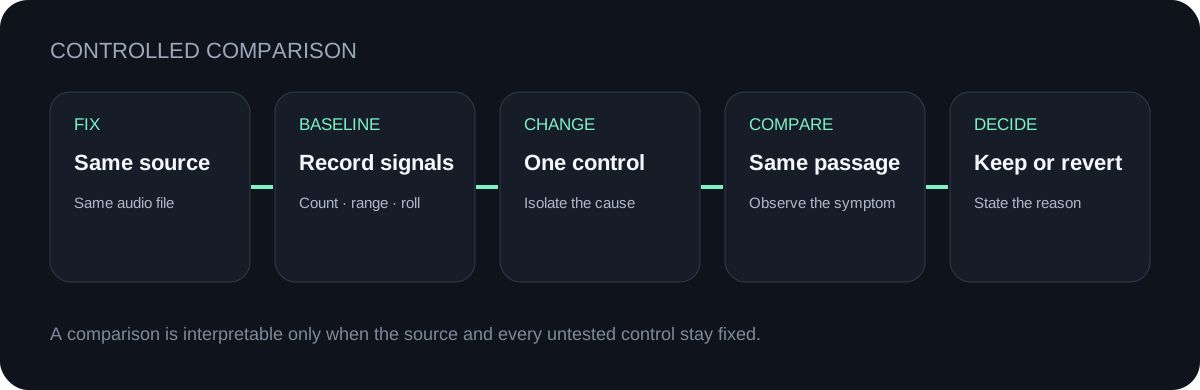
Use the same source and passage, save a baseline, change one control, and compare the visible note count, MIDI range, piano-roll pattern, and the same preview passage. Keep the trial only when the intended melody remains and a specific unwanted symptom is reduced.
RUN THE TEST
Use one supported file, record the result summary, then change one control only.
INPUT MP3 / WAV / M4A / FLAC / OGG → OUTPUT .MID
or click to choose audio from your device
MP3, WAV, M4A, FLAC, or OGG · one file · up to 50 MB / 5 minutesRESULT
Your audio stays on your device. All processing happens in this browser. No file is uploaded to a server.
| Single control changed | What can visibly change here | What does not prove improvement | Keep the trial only when |
|---|---|---|---|
| Silence threshold | Detected note count, quiet-event presence, and piano-roll pattern can change. | A lower note count by itself. | The intended melody remains while the targeted quiet false events are reduced. |
| Low or high pitch boundary | The displayed MIDI range and out-of-band events can change. | A narrower range by itself. | Unwanted edge detections disappear without removing intended edge notes. |
| Minimum note duration | Brief fragments can disappear and the note count can fall. | Fewer notes by itself. | Targeted fragments are reduced while intentional short notes remain. |
| Tempo | The displayed BPM and downloaded MIDI timing scale change. | An unchanged piano-roll preview. | The downloaded file aligns more usefully with the intended project timing. |
| Quantize | Downloaded MIDI event timing snaps to the selected grid. | An unchanged on-page detection preview. | The downloaded timing is easier to edit without erasing intended rhythmic placement. |
BASELINE
Write down the control values, note count, displayed MIDI range, BPM, and a short description of the same preview passage. These are observable signals, not an accuracy percentage.
TRIAL
Keep the file and passage fixed. If two controls change, the result cannot tell you which control caused the difference.
REFERENCE
If you have a score, a played note list, or a hand-checked reference MIDI, compare detected events with that reference. Without one, describe visible symptoms and avoid calling the result accurate.
DECISION
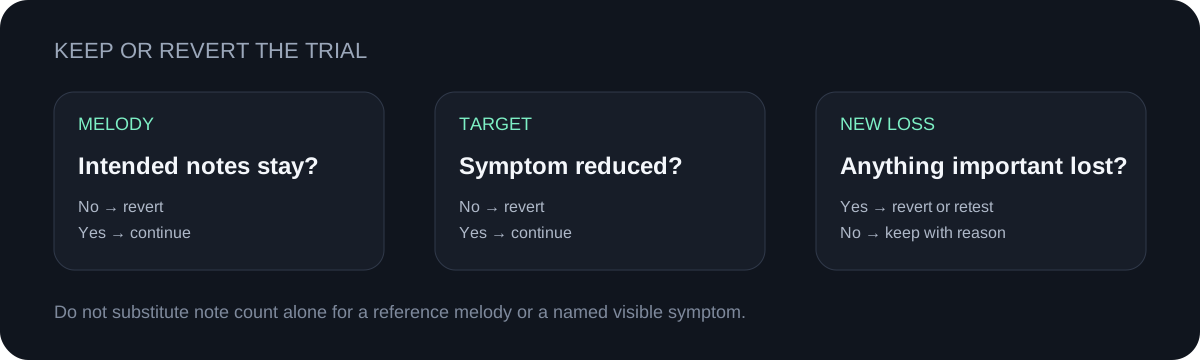
Keep the change only when the intended melody remains and the exact symptom you targeted is reduced. Revert if an intended note, boundary, or rhythm disappears.
QUICK ANSWERS
An accuracy claim cannot be verified from a product label alone. Use the same source and a known reference transcription, define which note and timing differences count, then compare the outputs under the same conditions.
Hold the source fixed, save a baseline, change one control, and compare note count, MIDI range, the same piano-roll passage, and the same audio preview before deciding.
No. A lower count may remove false fragments, but it may also remove intentional short notes. Check which specific events disappeared.
On this tool, quantize is applied when the MIDI event timing is written to the downloaded file. The on-page roll displays detected notes, so compare quantized timing after importing the download into a DAW.
Match the visible symptom to the troubleshooting table. Change its first suggested control, then compare against the unchanged baseline.