REGION INSPECTOR
Quantize the selected MIDI region
Apple's current Logic Pro guide places the Quantize pop-up in the Region inspector. The region's grid begins at the region start, so align the region deliberately before judging bar-relative timing.
LOGIC PRO WORKFLOW
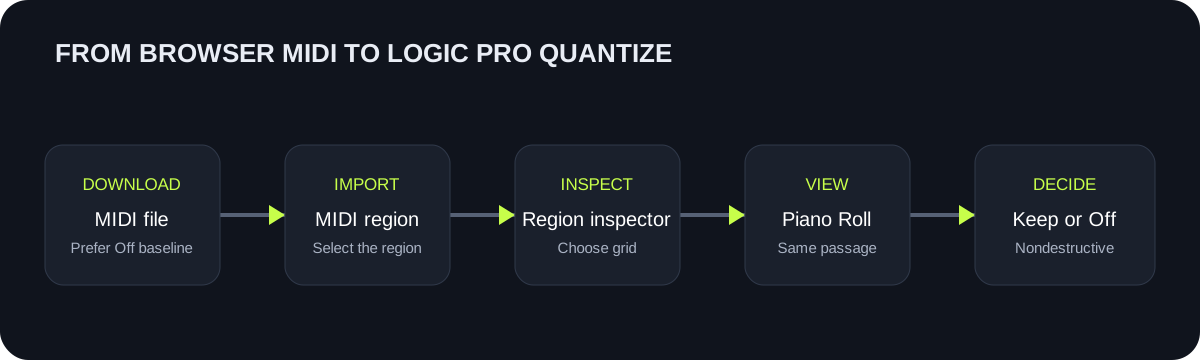
Import the downloaded `.mid`, select its MIDI region, open the Region inspector, and choose a value from the Quantize pop-up menu. Logic Pro applies region quantization nondestructively, so keep the original region and compare a fine grid before trying a coarser one. Use the Piano Roll Editor to see the changed note positions.
CREATE THE IMPORT FILE
Download an unquantized baseline or choose a browser grid, then compare it with Logic Pro's region-level quantization.
INPUT MP3 / WAV / M4A / FLAC / OGG → OUTPUT .MID
or click to choose audio from your device
MP3, WAV, M4A, FLAC, or OGG · one file · up to 50 MB / 5 minutesRESULT
Your audio stays on your device. All processing happens in this browser. No file is uploaded to a server.
| Stage | Action in Logic Pro | Observable check | Keep a reference |
|---|---|---|---|
| Import | Drag the downloaded `.mid` into the Tracks area and select its MIDI region. | The region appears on a software instrument track. | Duplicate the region before changing quantize settings. |
| Open inspector | Show the Region inspector for the selected MIDI region. | The Quantize pop-up belongs to the selected region. | Confirm the correct region is selected. |
| Choose grid | Start with a fine normal value such as 1/16, then compare with Off. | Note positions change relative to the selected grid. | Keep Off on the duplicated reference region. |
| Inspect notes | Open the Piano Roll Editor and view the same passage. | Logic displays the effect of the region's Quantize value. | Compare identical bars at the same project tempo. |
| Refine | Use Q-Strength or Q-Range when full snapping removes useful timing. | Notes move partly or selectively toward grid positions. | Write down each changed parameter. |
| Choose algorithm | Compare Classic and Smart Quantize when relative event placement matters. | Smart Quantize can preserve relative positions inside event groups. | Audition the same phrase before deciding. |
REGION INSPECTOR
Apple's current Logic Pro guide places the Quantize pop-up in the Region inspector. The region's grid begins at the region start, so align the region deliberately before judging bar-relative timing.
NONDESTRUCTIVE
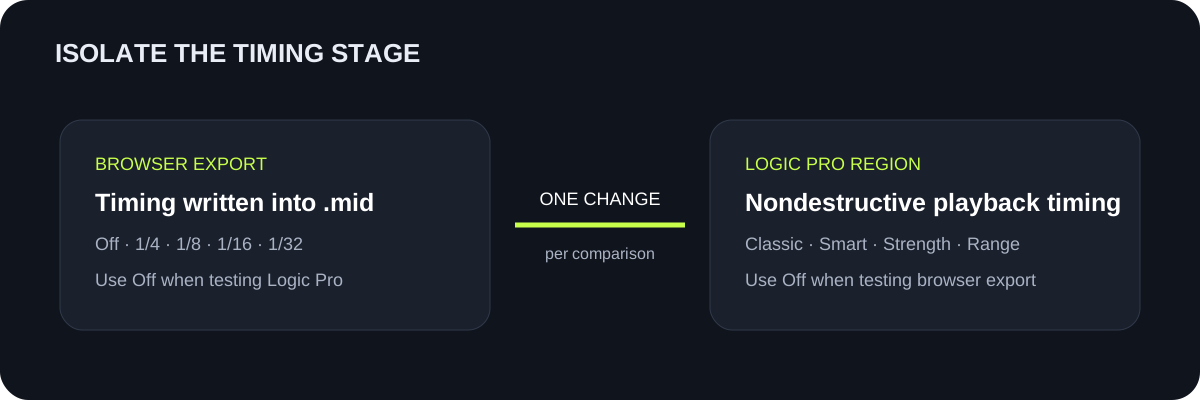
Logic Pro region quantization changes playback positions while retaining original note positions. Setting Quantize back to Off restores unquantized playback unless parameters are applied permanently.
CLASSIC OR SMART
Classic Quantize moves notes toward the chosen grid. Smart Quantize analyzes nearby groups and can preserve relative event ordering, including related controller data.
PARTIAL CORRECTION
Q-Strength controls how far events move toward the grid. Q-Range determines which events are eligible based on their distance from grid positions. Change one parameter at a time.
QUICK ANSWERS
Select the MIDI region, open the Region inspector, and choose a value from the Quantize pop-up menu.
Yes. Apple's guide says the selected region Quantize value affects how notes are displayed in MIDI editors, so inspect the same passage in the Piano Roll Editor.
No. Region quantization is nondestructive until you deliberately apply region parameters permanently. Keep a duplicate reference and use Off to compare original playback timing.
Classic Quantize moves notes toward grid positions. Smart Quantize analyzes event groups and preserves their relative order while moving the group toward the target grid.
For a controlled test, change only one stage. Export with Quantize Off when testing Logic Pro's settings, or leave Logic Pro Off when evaluating the browser grid.