DOCUMENTED BOUNDARY
Audio and MIDI are separate imports
Apple's GarageBand for Mac guide lists MP3 as an audio format and separately describes importing MIDI. It does not describe importing an MP3 as editable MIDI notes.
GARAGEBAND WORKFLOW
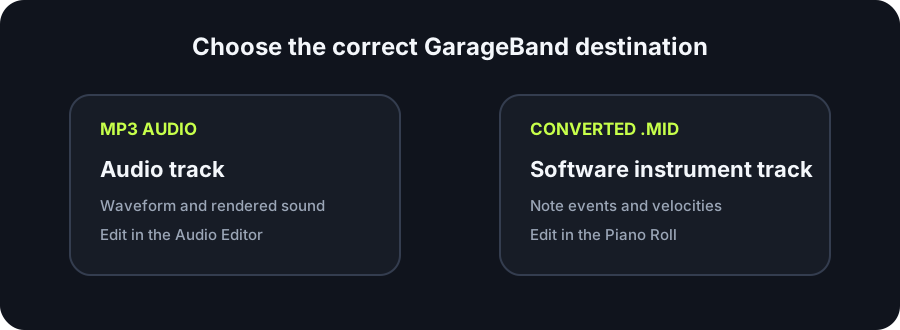
GarageBand imports MP3 audio and MIDI as different media types. Its current Mac guide does not document a direct command that turns an arbitrary MP3 recording into MIDI note events. Convert the MP3 to a `.mid` in this browser, then drag that MIDI file to a GarageBand software instrument track or the empty Tracks area.
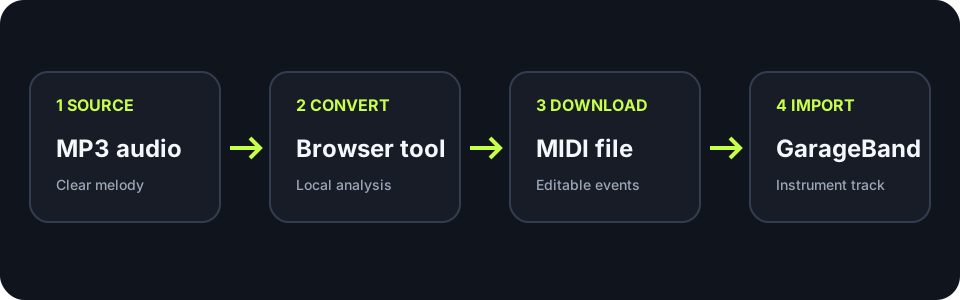
CONVERT BEFORE IMPORT
Choose one clear melody, inspect the detected notes, and download the `.mid` before opening GarageBand.
INPUT MP3 / WAV / M4A / FLAC / OGG → OUTPUT .MID
or click to choose audio from your device
MP3, WAV, M4A, FLAC, or OGG · one file · up to 50 MB / 5 minutesRESULT
Your audio stays on your device. All processing happens in this browser. No file is uploaded to a server.
| Stage | File or region | What to do | Observable result |
|---|---|---|---|
| Source | MP3 recording | Prefer one clear sung or played melody with limited background sound. | The browser preview should show a coherent note line before download. |
| Convert | Detected events | Change one control at a time if notes are missing, fragmented, or outside the intended range. | The result summary and piano roll change in a way you can compare. |
| Download | Standard `.mid` | Save one unchanged copy so later GarageBand edits do not replace your reference. | The file ends in `.mid` and remains available for a clean re-import. |
| Import | MIDI region | Drag the `.mid` from Finder to a software instrument track or the empty area below existing tracks. | GarageBand places the MIDI on one or more software instrument tracks. |
| Choose sound | Software instrument track | Select the intended instrument patch in GarageBand's Library. | The same note events play through the chosen sound. |
| Edit | Piano Roll region | Inspect note positions, durations, velocities, project tempo, and region start. | You can correct events without altering the original MP3. |
DOCUMENTED BOUNDARY
Apple's GarageBand for Mac guide lists MP3 as an audio format and separately describes importing MIDI. It does not describe importing an MP3 as editable MIDI notes.
IMPORT TARGET
Apple's guide says to drag a MIDI file to a software instrument track or the empty area below existing tracks. GarageBand then places it on one or more software instrument tracks.
SOUND AFTER IMPORT
MIDI does not contain recorded sound. GarageBand's selected software instrument renders the imported note events, so a different patch can sound completely different.
EDITING CHECK
After import, inspect the MIDI region in the Piano Roll. Change note timing or length there; return to conversion only when the detected events themselves need a new pass.
QUICK ANSWERS
GarageBand's current Mac guide documents MP3 as imported audio and MIDI as a separate import type. For editable note events, convert the MP3 to `.mid` first, then import that MIDI file.
On Mac, drag the `.mid` from Finder to a software instrument track or to the empty area below the existing tracks. GarageBand creates one or more software instrument tracks for the MIDI.
The MP3 stores rendered audio. The `.mid` stores note events. GarageBand renders those events through the software instrument patch you choose.
Yes. Open the imported MIDI region in the Piano Roll to inspect and edit note positions, durations, and velocities.
No. Import the original MP3 as audio if you want its waveform. Import the converted `.mid` to a software instrument track when you want editable note events.